Creating custom game cards printing has never been easier with Google Docs. Whether you're designing cards for a board game prototype, educational flashcards, or a personalized card game for family game night, Google Docs offers a versatile platform to bring your ideas to life. This comprehensive guide will walk you through the process step by step.
Getting Started with Google Docs
Before diving into card creation, you'll need to set up your document properly:
- Open Google Docs and create a new document
- Set up the page layout by going to File > Page Setup
- For standard playing card sizes, select "Custom" and enter dimensions (2.5" × 3.5" for poker-sized cards)
- Consider changing the orientation to landscape if it suits your design better
Creating a Card Template
The key to efficient card creation is developing a reusable template:
- Insert a table by clicking Insert > Table
- For individual cards, a 1×1 table works well as your card boundary
- Set table properties by right-clicking > Table properties
- Adjust borders, background colors, and cell padding to match your desired card appearance
- Consider adding guides or markers for consistent placement of elements
Designing Your Cards
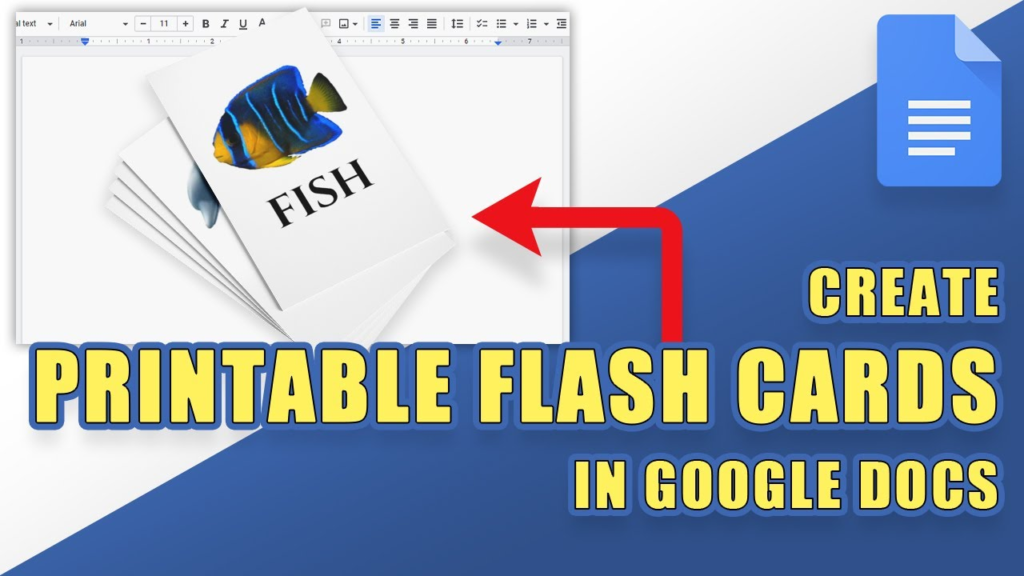
Recommended Reading: How to Make Game Cards on Google Docs
Now for the creative part:
- Add card text using text boxes for flexible positioning
- Insert images by clicking Insert > Image and uploading your artwork
- Use Drawing tool (Insert > Drawing) for custom shapes and elements
- Create consistent styling with the same fonts and color palette across cards
- Use columns and rows to organize information clearly
Incorporating Game Elements
For functional game cards:
- Add icons or symbols that represent game actions
- Include clear labels for card types or categories
- Balance text and visual elements for readability
- Consider using colored borders or backgrounds to distinguish card types
- Place important information in consistent locations on each card
Using Templates for Mass Production
To create multiple cards efficiently:
- Design your base template with placeholder text
- Duplicate the table structure for each new card
- Use "Copy formatting" (paintbrush icon) to maintain visual consistency
- Consider creating separate documents for different card types
- Use document outline to navigate between card sections easily
Exporting and Printing
When your designs are ready:
- Export as PDF by selecting File > Download > PDF Document
- For professional quality, consider adjusting the PDF settings to high resolution
- Test print a few cards before doing a full production run
- Use cardstock paper (ideally 80-110 lb) for durability
- Consider printing services that specialize in card production for final versions
Advanced Techniques
To take your cards to the next level:
- Use add-ons like "Lucidchart Diagrams" for more complex designs
- Create a spreadsheet with card data and use Mail Merge add-ons to generate cards automatically
- Use scripts to automate repetitive design tasks
- Implement templates with advanced formatting for consistent card generation
- Consider watermarks or background patterns for added visual interest
Troubleshooting Common Issues
When issues arise:
- If images appear distorted, right-click and select "Image options" to adjust
- For alignment problems, use tables and text alignment tools
- If text wrapping is inconsistent, adjust the text box properties
- For printing issues, check printer settings and paper orientation
- Back up your designs regularly using version history
By following this guide, you can create professional-looking game cards directly in Google Docs. While the platform has some limitations compared to dedicated design software, its accessibility and collaborative features make it an excellent choice for prototyping and small-scale production of game cards.